• About Us
  • Collegian Digital Archive
  • Publication dates
  • About Us
  • Collegian Digital Archive
  • Publication dates
Home/Knowledge Base/Photoshop Tutorials/Staying logged in to Adobe Creative Cloud

Staying logged in to Adobe Creative Cloud

54 views 0

Every so often, computers in the Shima 203 and 204 lab will ask if you are still logged in to Adobe Creative Cloud. The window looks like this:
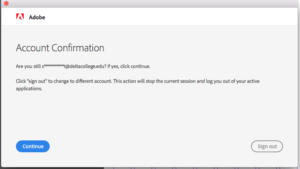
A window that is displayed by Adobe Creative Cloud programs after a period of use. If you encounter it, press "continue."

Click “Continue” to keep using whichever Adobe application is open. If you don’t, you will need to sign back in to use any Adobe applications.

If this happens, the easiest thing to do is restart your computer. MAKE SURE TO BACK UP ANYTHING BEING WORKED ON BEFORE YOU DO THIS.

Note: Neither Matt nor Tara have the login information for the Delta College student Adobe account. If you don’t have a personal Creative Cloud account, you will need to restart the computer if you are locked out.

Was this helpful?

Yes  No
Related Articles
  • Page Design Video Tutorial
  • Resizing photos
  • Cropping photos
  • Dodging and burning photos
  • Drawing a box
  • Nesting a byline

No luck finding what you need? Contact Us

Campus Media

Most Visited
  • Link to Pulse 209
  • Social media for Pulse of 209
  • Building a photo gallery with Royal Slider
  • Basic Photoshop editing
  • Using Cheqroom for equipment requests
  • Basic audio editing
  • Tutorials, documents and helpful links
  • Getting to know the Canon Vixia Video Camera
  • Data Retention
  • Page Design Video Tutorial

Placing a photo on a page  

© The Collegian 2010-2024