• About Us
  • Collegian Digital Archive
  • Publication dates
  • About Us
  • Collegian Digital Archive
  • Publication dates
Home/Knowledge Base/InDesign Tutorials/Drawing a box

Drawing a box

83 views 1

rectangle

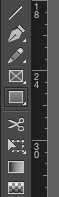
Click the “Rectangle” tool to activate it. A cross-marked cursor will appear on the screen. Click the mouse and hold to see a box start to form. Draw the box as large or as small you’d like. Once you’re drawn the box to the size you’d like, release the mouse.

NOTE: You will still see the cursor marker. To get rid of that marker, click the “Selection” arrow. It’s the black arrow at the top of the same left-side aligned toolbox.
stroke

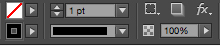
In the “Stroke” window, in the toolbar on top of the page, you can give the box a black outline. You can also change the color of the stroke, though we have limited color in actual print for The Collegian.

Was this helpful?

1 Yes  No
Related Articles
  • Page Design Video Tutorial
  • Staying logged in to Adobe Creative Cloud
  • Nesting a byline
  • Placing a photo on a page
  • Basic page design tutorial

No luck finding what you need? Contact Us

Campus Media

Most Visited
  • Building a photo gallery with Royal Slider
  • Basic audio editing
  • Social media for Pulse of 209
  • Basic Photoshop editing
  • Link to Pulse 209
  • Getting to know the Canon Vixia Video Camera
  • Using Cheqroom for equipment requests
  • Tutorials, documents and helpful links
  • Data Retention
  • Other style guides

  Nesting a byline

Basic page design tutorial  

© The Collegian 2010-2024