• About Us
  • Collegian Digital Archive
  • Publication dates
  • About Us
  • Collegian Digital Archive
  • Publication dates
Home/Knowledge Base/Multimedia Storytelling/Getting to know the Canon Vixia Video Camera

Getting to know the Canon Vixia Video Camera

9 views 0

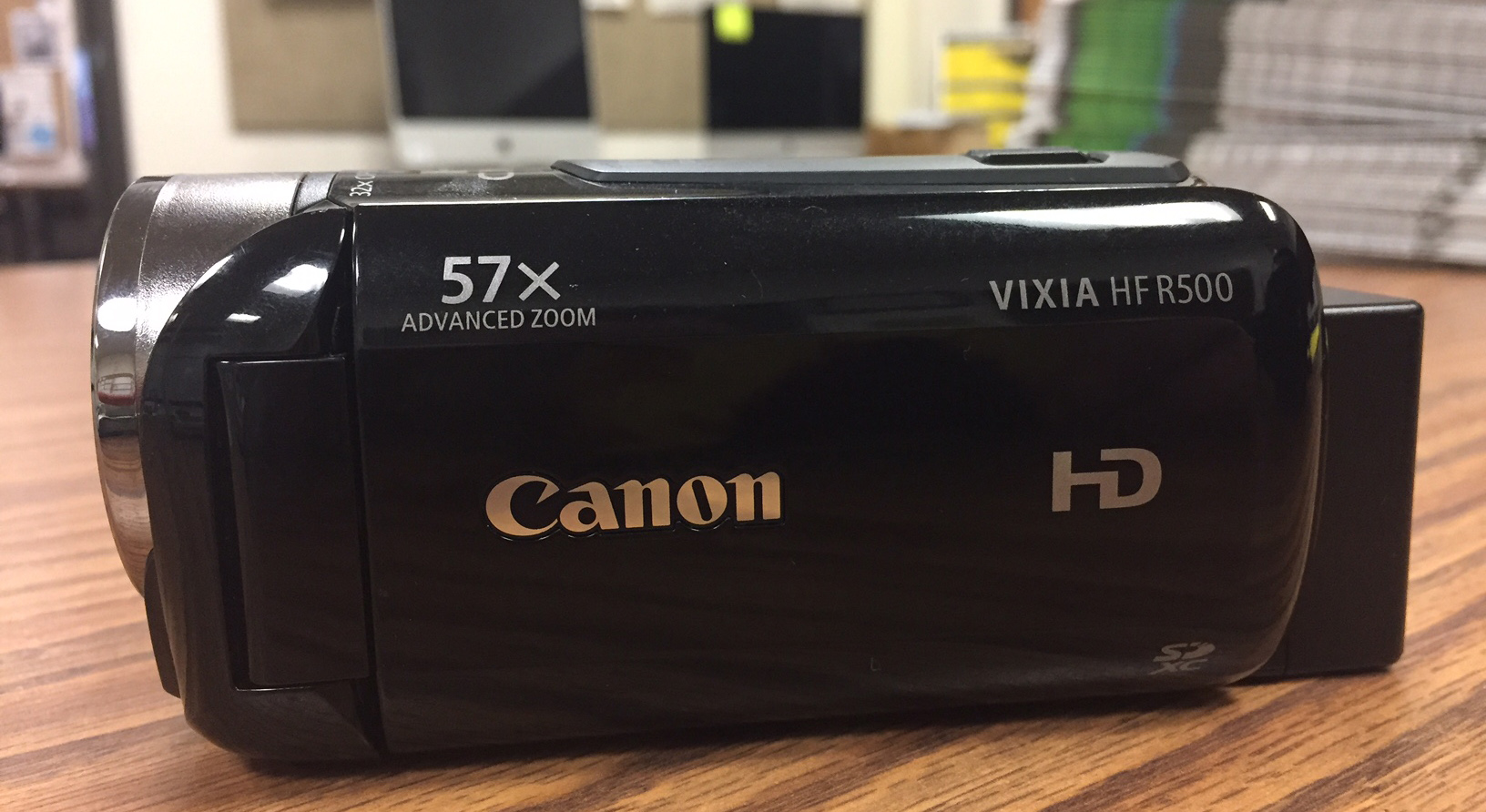
MCOM 10 students have access to Canon Vixia cameras. These cameras are consumer-level products and are easy to use.

For the most part, working the Camera is self explanatory, but this page serves as quick-start guide to get shooting.

Please remember to respect the equipment, keep track of all the pieces in your rented kit and make sure you return everything to the instructor.
Lens cap

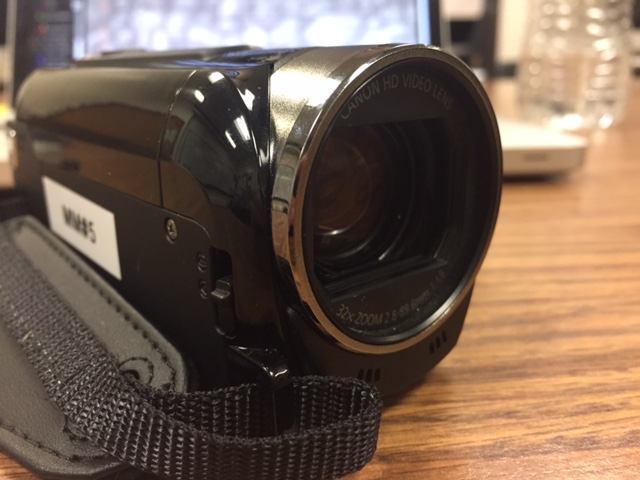
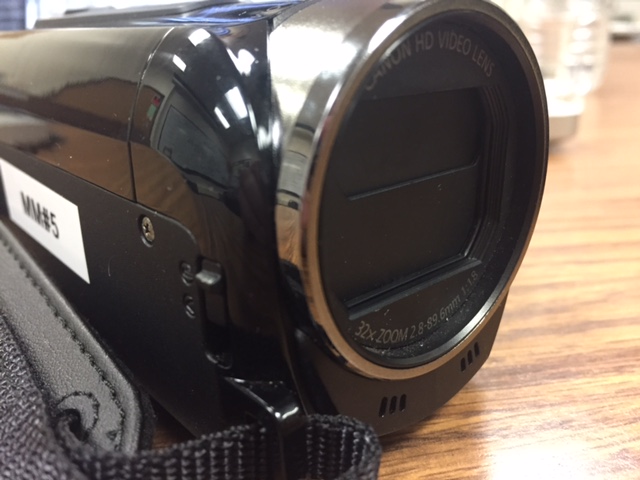
The lens cap is located on the left-hand side of the lens. It was be switched into the up or down mode.

You should receive the camera with the lens closed. Please close the lens before you return the camera to the bag.

OPEN
CLOSED
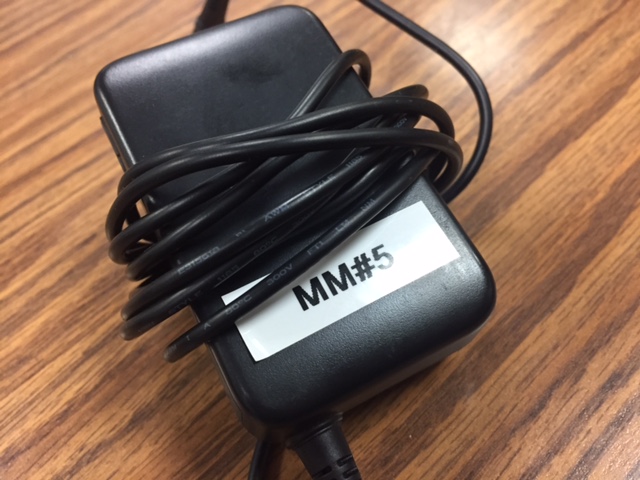
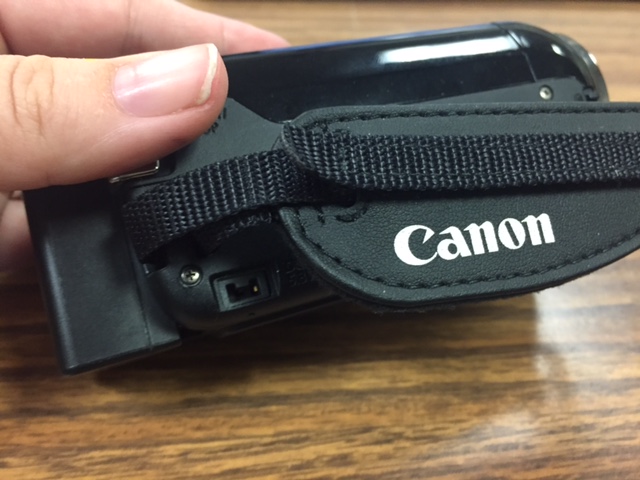
Charger

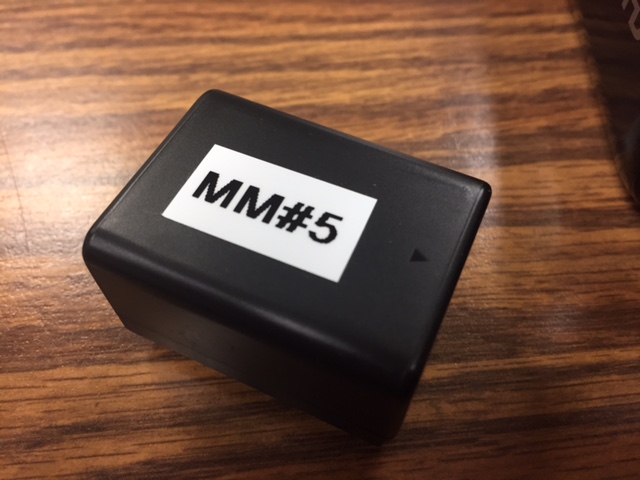
The camera comes with a charger. The charger plugs into the right side of the camera, near the hand strap.

The camera charge lasts about two hours. So if you’re shooting for a prolonged time, you need to make sure both the batteries are charged.
Batteries

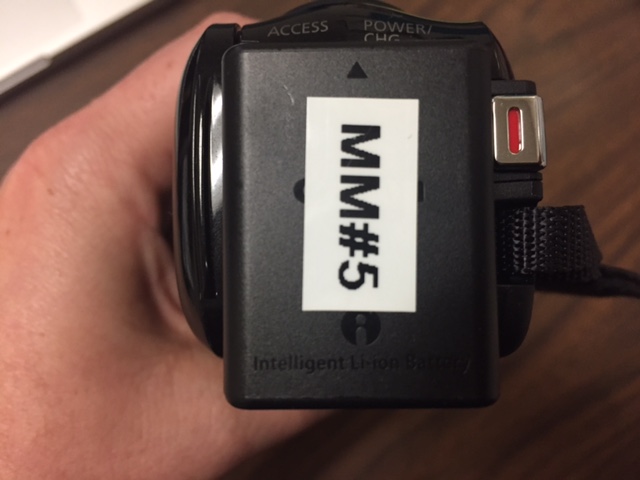
The main battery will be attached to the camera. An extra battery will also be included in the bag.

The batteries should be charged before you head out to an assignment. If you are heading out immediately, make sure the battery IS charged before you take the camera.
Control Panel

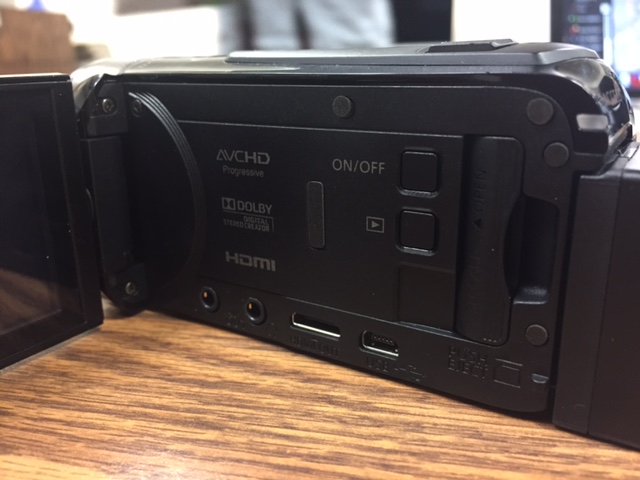
The Canon Vixia video camera has a “hard” control panel. It also has a touch-screen control panel for fine-tuning video footage.

The hard panel includes the power button, the microphone and headphone hookups and the insertion slot for the SD card.
Memory Card Panel

You will insert your loaned 32-gig memory card here. Please make sure to remove it and keep it (until the semester's end) when you turn in the camera. The camera will alert you if the memory card door is open. You will not be able to record until it is secured shut.

Playback Button

Use this button to playback footage in the field.

Power Button

The camera is designed to turn on when you open up the viewfinder window. However, if you have a lull in shooting and need to turn the camera off, use the on/off switch.

HDMI Input

You may use an HDMI cable to move over your footage to the server. The easier approach, though, is pulling out the SD card and inserting it into the back of one of the iMac computers.

Headphone Jack

Use this hole to plug in your headphones to monitor your audio.

Microphone Input

Use this hole to plug in the lavaliere microphone. Make sure the microphone is plugged in all the way, otherwise it won't register with the camera.

Screen

The touch-screen turns on when you open the viewfinder door.

Microphone

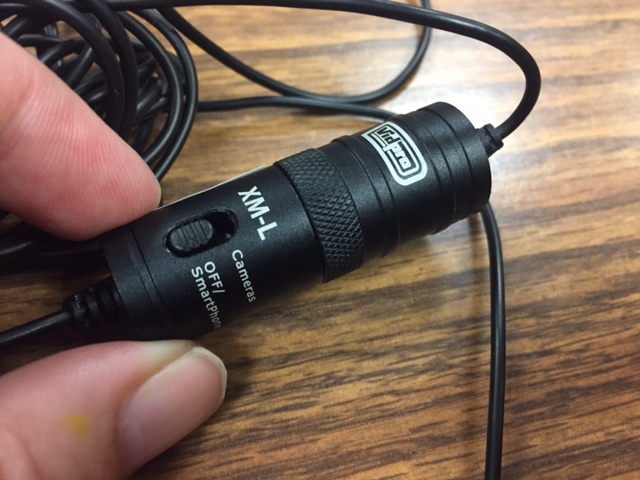
While not part of the camera, a lavaliere microphone comes with the camera kit.

The lavaliere has two modes: “Phone/Off” and “Camera.” It takes a small pancake battery.

The battery in this will run down if you leave the microphone in the “on” position.

Please put the microphone into the “Phone/Off” position immediately after finishing your interview.
Was this helpful?

Yes  No
Related Articles
  • Building a photo gallery with Royal Slider
  • Basic Photoshop editing
  • Social media for Pulse of 209
  • Basic audio editing
  • Link to Pulse 209
  • Using Cheqroom for equipment requests

No luck finding what you need? Contact Us

Campus Media

Most Visited
  • Building a photo gallery with Royal Slider
  • Basic audio editing
  • Social media for Pulse of 209
  • Basic Photoshop editing
  • Link to Pulse 209
  • Getting to know the Canon Vixia Video Camera
  • Using Cheqroom for equipment requests
  • Tutorials, documents and helpful links
  • Data Retention
  • Other style guides

  Link to Pulse 209

Building a photo gallery with Royal Slider  

© The Collegian 2010-2024